DEMO
Connect Demo-Company's
QuickBooks Desktop to DEMO
QuickBooks Desktop to DEMO
Step 5 of 6:
Now, enter the Web Connector password to finish connecting your company file to DEMO:
1
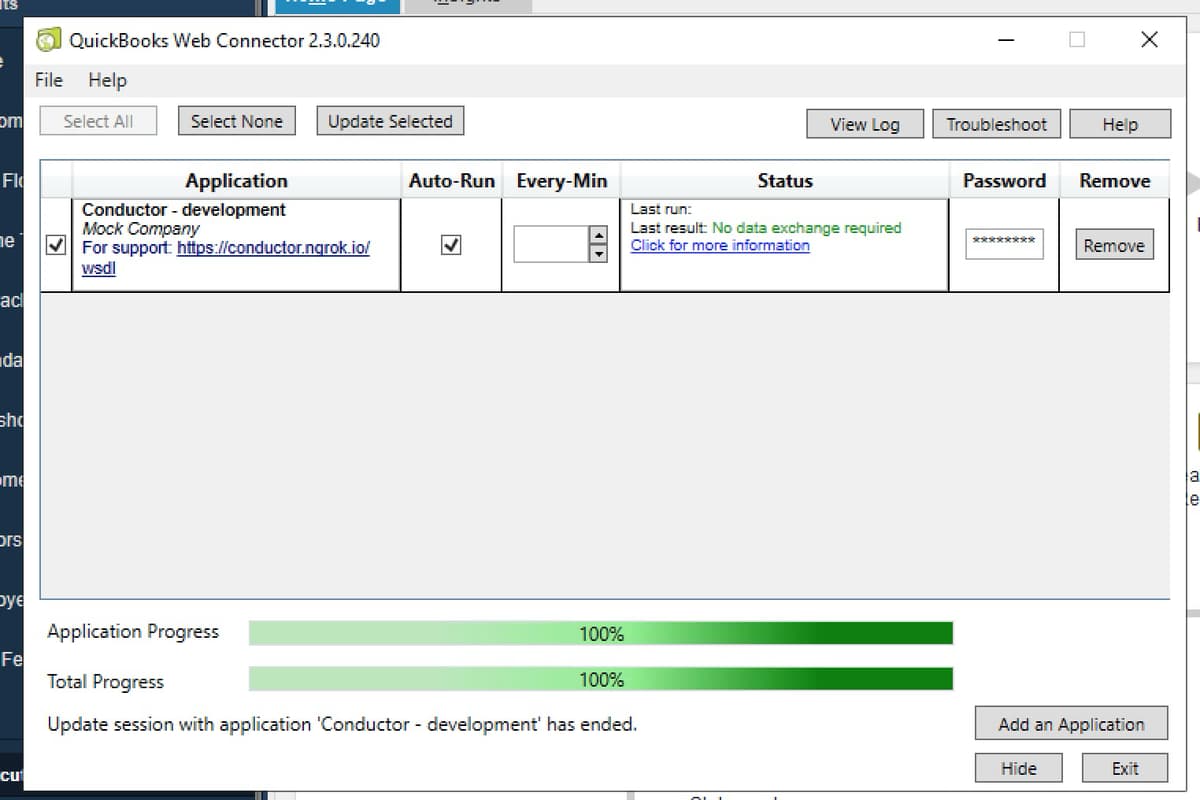
You should now see the QuickBooks Web Connector like below, but with a row for DEMO:
2
Copy the unique password below.
Web Connector password, click to copy
this-is-a-demo
3
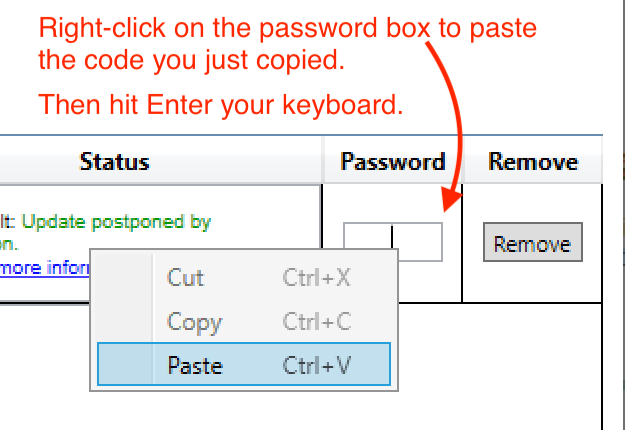
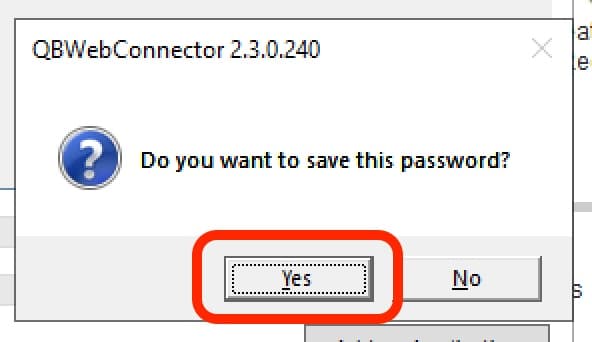
Paste it into the Password box in the QuickBooks Web Connector, hit "Enter" on your keyboard, and click "Yes" to save your password:
4
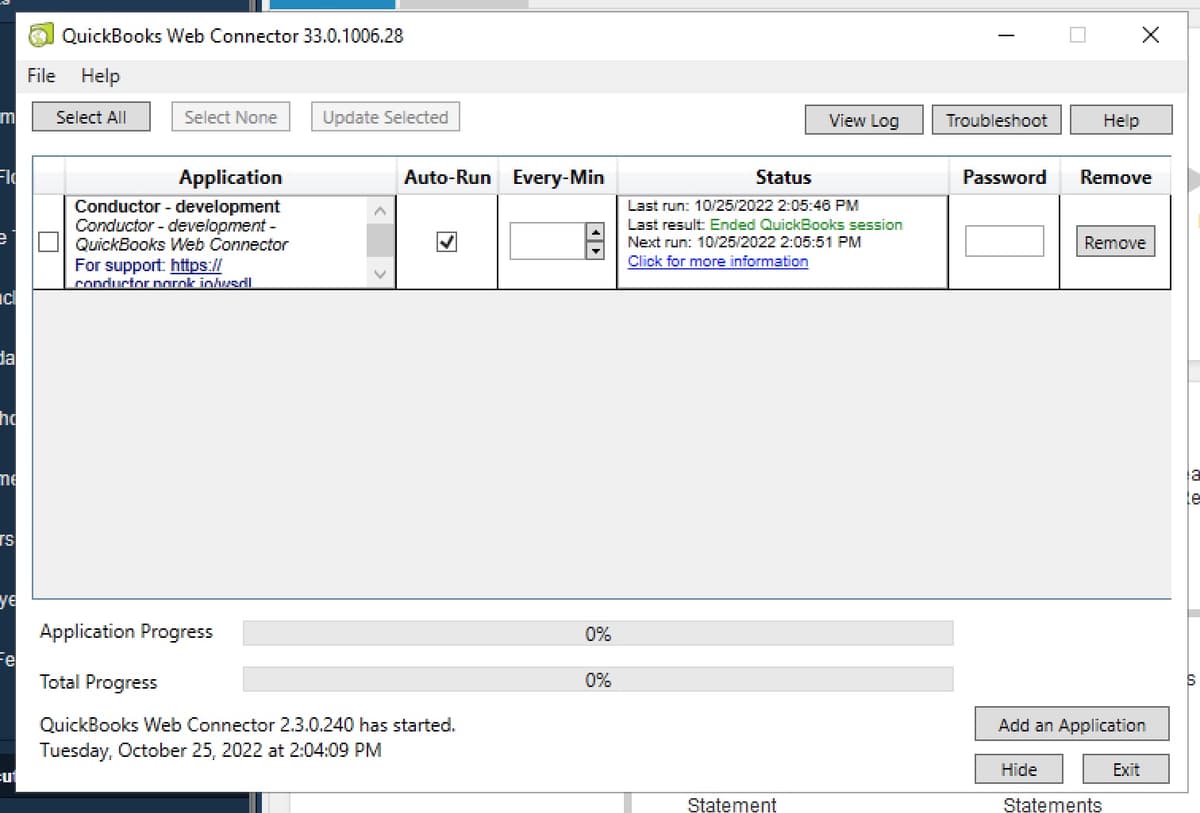
The QuickBooks Web Connector will begin syncing, resembling the image below.
⚠️ IMPORTANT: Never change these Web Connector settings!
Do not change the "Every-Min" value. Do not uncheck"Auto-Run". The Web Connector will quietly run in the background on your computer, harmlessly checking for new requests like checking for new emails. Any changes here will break the connection.
Do not change the "Every-Min" value. Do not uncheck"Auto-Run". The Web Connector will quietly run in the background on your computer, harmlessly checking for new requests like checking for new emails. Any changes here will break the connection.